7 Canva Hacks That Will Upgrade The Look Of Your Content

Canva continues to roll out features that make it easier than ever to create content that looks polished, professional, and completely on-brand.
But, here’s the truth: most people are only scratching the surface of what Canva can really do.
If you’re not familiar with Canva, it is an online graphic design tool that allows you to create graphics, images, and videos for your social media platforms. At The Social Snippet, we use Canva to create content that our clients love, and so do their audiences.
In this blog post, we’ll be sharing 7 useful Canva hacks that you can incorporate to create engaging content to share on your social media accounts.
But, for starters –
Why Should You Use Canva?
Canva offers cost-effective design creation that anyone can get their hands on. You can create two types of accounts on Canva: free or Pro. The free account will give you access to the basics, whereas the Pro account will unlock all of Canva’s features.
In an era defined by AI technology, Canva is no stranger to AI-powered editing tools. Canva’s tools provide comprehensive automation for design generation, text creation, and image and video editing.
Canva offers real-time collaboration to create the perfect content that brings everyone joy!
Time to dive right into the hacks now!
7 Canva Hacks To Elevate Your Content
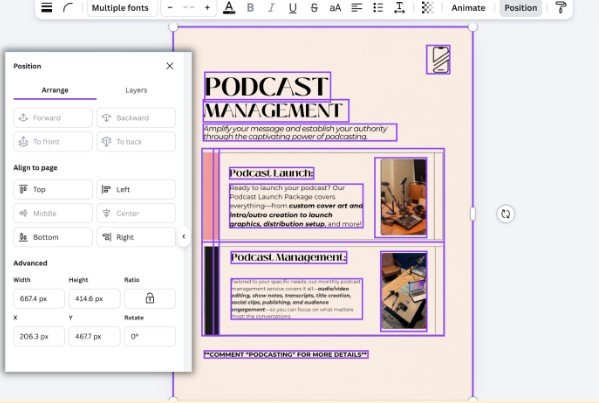
The Position Feature Will Fix Everything
If you find yourself constantly worrying if all the elements are lining up correctly, or why your design doesn’t look as polished as Canva Experts’, this hack is for you! Select all the elements in your Canva design, click “position”, and you can align your elements and space them evenly. Yes, you can even tidy up all your elements overall!
Elevate Your Image Quality With Image Upscaler
Have an image that’s not high resolution? Or worse…got a screenshot that you have to incorporate into a design? We’ve all been there. Canva has a helpful built-in app called Image Scaler. Select your image, browse through the apps to find Image Scaler, and press “Upscale”. Voilà, your high-res image is ready!
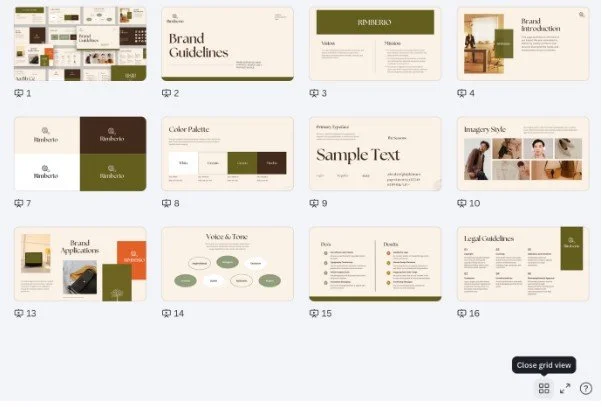
Make Life Easy With The Grid View Feature
We understand that you work with multiple Canva designs for one project. For example, for our wellness brand clients, we create batches of content covering various topics for their social media marketing purposes. Instead of creating a separate design for each topic, you can create them all under one design. Hit “grid view” at the bottom right of the page, and view all of your pages at once. Yes, drag and drop totally works here!
Use “Magic Write” To Add Magic To Your Words
Just like our most beloved, ChatGPT, Canva uses AI technology to generate text. Magic Write can adapt to any tone you desire, create lists, or brainstorm new ideas for the social media growth and visibility that you’re aiming for. To do so, click on “Text” on the left and select “Magic Write”.
Transform Your PDFs Into Editable Designs
This Canva tip is truly a hidden gem, because it is so underutilized! If you go to Canva’s homepage, drop your PDF onto your homepage, and the document will automatically upload. Canva will then recognize every single line of text boxes and elements, enabling you to move everything around, edit or delete parts, and even change the colours! Super cool, right?
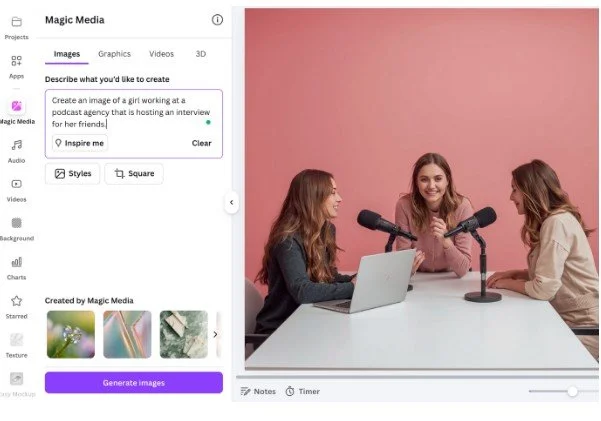
"Magic Media" To Save The Day
Canva's Magic Media is an AI-powered tool that converts text prompts into custom graphics, images, and videos! Describe what you’re looking for by selecting “Magic Media” on the left, and get unique, studio visuals in a few seconds. Here’s an example: “create an image of a girl working at a podcast agency that is hosting an interview for her friends”. And, here we have our results!
QR Code Generator With Customizations
With Canva’s QR code generator, simply paste the link into the generator. Once you have your code, take it a step further by customizing the colours to match your brand.
Bonus: Canva Templates
Here’s a bonus Canva tip for you, because we, at The Social Snippet, want to give you all the tips that Canva experts are using!
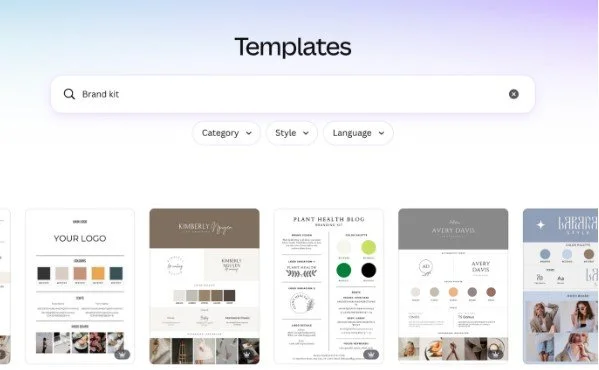
What you really should utilize: CANVA TEMPLATES!
They are versatile, trendy, and completely customizable. This is not only practical but extremely helpful if you’re having a creative block!
You can customize templates around your brand kits, using icons, fonts, and colours that suit your needs. Think of these as the foundation, not the finished product.
Final Thoughts
Great-looking content doesn't have to take hours, and you don't have to be a designer to pull it off. These Canva tips are here to make your social media content look more intentional and more YOU.
Which of these Canva hacks will you try first? Our suggestion: start with Magic Media to get the content ideas flowing! :)
Need help keeping up with social media trends and creating content for your business? Get in touch with our team via our website or socials to see how we can help you with your social media marketing and management needs!